

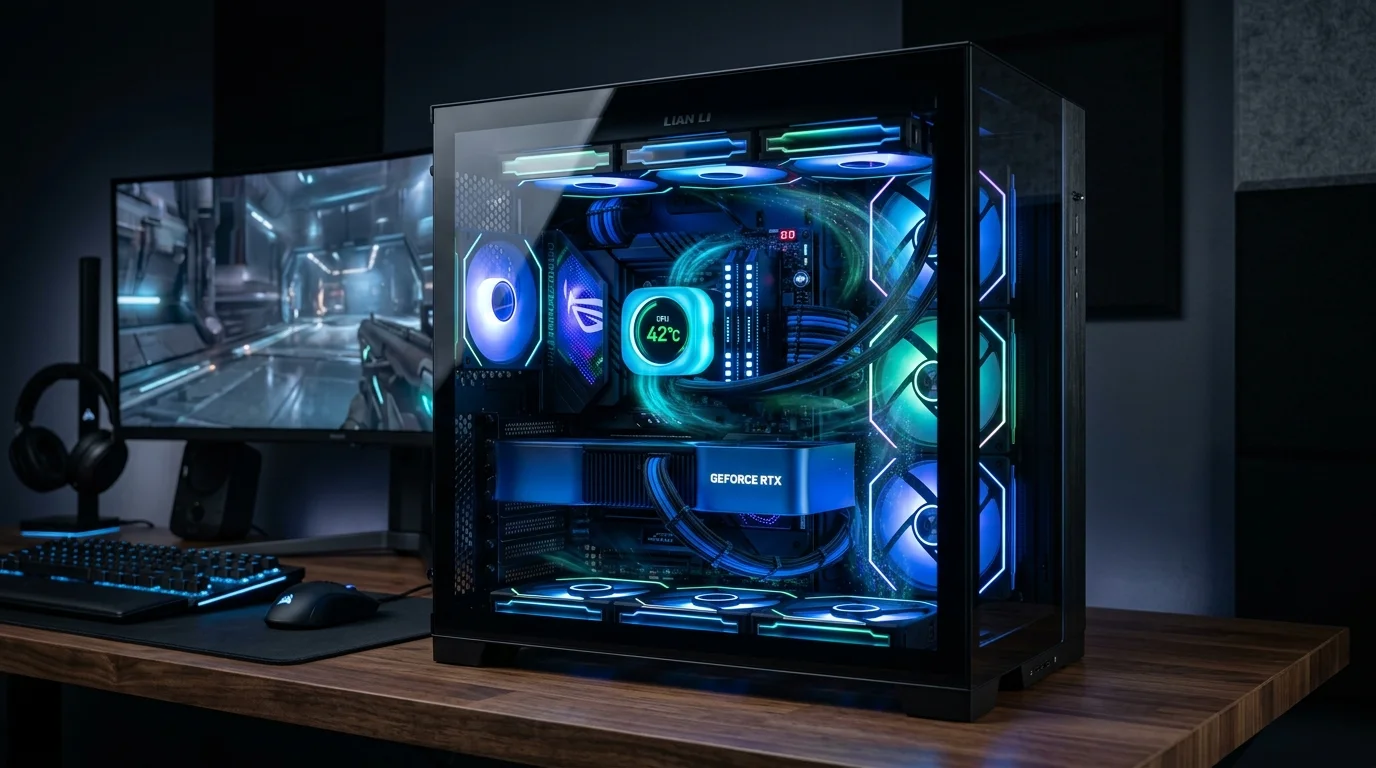
Maintaining a healthy cpu temp is essential for keeping your computer running smoothly, whether you build custom gaming PCs, manage workplace workstations, or simply use your laptop for daily tasks. Modern processors are built to push their performance limits, but excessive heat can trigger performance slowdowns, system instability, or long-term hardware wear.
This complete guide breaks down safe operating temperatures, shows you how to check your cpu temp across different operating systems, and gives you actionable fixes if your system is running too hot.
1. Quick Reference: What is a Normal CPU Temperature?
Understanding what constitutes a normal CPU temperature depends entirely on what your computer is doing at any given moment. A system resting on the desktop uses far less power than one rendering a 4K video or running a modern AAA game.
Safe CPU Temperature Benchmark Table
| Operational State | Safe Range (°C) | Safe Range (°F) | Warning Zone | TJMax Danger Threshold |
| Idle / Light Work | 30°C – 50°C | 86°F – 122°F | 55°C – 65°C | 95°C+ |
| Gaming & Moderate Load | 60°C – 80°C | 140°F – 176°F | 82°C – 89°C | 95°C+ |
| Heavy Multi-Thread Rendering | 75°C – 88°C | 167°F – 190°F | 90°C – 94°C | 95°C – 105°C |
| Stress Testing (Prime95/Cinebench) | 80°C – 92°C | 176°F – 197°F | 93°C – 98°C | 95°C – 105°C |
Intel vs. AMD: Modern CPU Heat Dynamics
If you have recently purchased a modern chip, such as an AMD Ryzen 7000/9000 series or an Intel Core 13th through 15th Generation processor, your baseline expectations might need an adjustment. Modern desktop processors are specifically engineered to auto-boost their clock speeds until they hit power or thermal headroom.
Under heavy multi-core stress, these chips will intentionally run between 85°C and 95°C. Both AMD and Intel design these processors to operate continuously at these upper limits without hardware degradation.
Laptop vs. Desktop CPU Thermal Margins
Laptops operate under far tighter physical constraints than desktop towers. Because mobile cooling assemblies share thin copper heat pipes across both the processor and graphics chip, mobile processors naturally run warmer. An idle laptop reading between 45°C and 55°C, or reaching 85°C to 90°C during gaming sessions, is completely normal and well within designed engineering parameters.
2. How to Check Your CPU Temp in Windows 11 & 10
Windows does not display real-time processor temperatures in Task Manager, so you need lightweight diagnostic software or to restart into your system’s motherboard settings to get an accurate reading.
Method 1: Third-Party Monitoring Software
Using dedicated software is the easiest way to monitor real-time thermal changes without interrupting your workflow.
-
HWiNFO64: Widely regarded as the industry standard for hardware diagnostic reporting. It provides exact readouts for core averages, individual core hot spots, and socket sensors. Look for the CPU Package value to use as your overall baseline reading.
-
Core Temp: A simple, lightweight utility that runs quietly in your system tray. It lets you monitor your CPU temp at a glance while working or browsing without cluttering your screen.
-
MSI Afterburner: The top choice for gamers who want an on-screen display overlay showing live thermal data, fan speeds, and frame rates directly inside video games.
Method 2: Checking Temperature in BIOS/UEFI
If you prefer not to install third-party applications, you can check baseline hardware health directly in your motherboard BIOS:
-
Restart your PC.
-
During the boot screen, press Delete or F2 repeatedly (or F10/F12 depending on your motherboard brand like ASUS, MSI, Gigabyte, or ASRock).
-
Locate the Hardware Monitor or System Health section.
Note: The BIOS menu places a light baseline load on the chip without running power-saving drivers, so readings here typically reflect idle or slightly elevated states.
Method 3: Cross-Platform Checking (macOS & Linux)
-
macOS: Apple Silicon Mac users can utilize utilities like iStat Menus or lightweight terminal monitoring scripts to read thermal sensor output.
-
Linux: Open a terminal window and run sudo apt install 1m-sensors followed by the senso command to output exact thermal values directly into the terminal window.
3. How to Read CPU Sensor Data Accurately
When monitoring system health, diagnostic tools present several distinct temperature metrics. Knowing which metric to focus on prevents unnecessary troubleshooting.
| Sensor Name | Current | Minimum | Maximum | Recommendation |
|---|---|---|---|---|
| CPU Package (Overall) | 42°C | 35°C | 78°C | Use this as your primary CPU temperature reading |
| CPU Core #0 | 39°C | 32°C | 74°C | Individual core temperature |
| CPU Core #1 | 41°C | 33°C | 76°C | Individual core temperature |
| CPU Max Core Distance | 44°C | 36°C | 78°C | Distance from thermal limit |
| CPU Tctl/Tdie (AMD) | 42°C | 35°C | 78°C | Primary sensor for AMD Ryzen CPUs |
CPU Package vs. Core Max vs. Tctl/Tdie
-
CPU Package: The main temperature reading to watch. It represents the hottest point across the entire processor die over a brief sampling window.
-
Core Max: Displays the single hottest individual processing core on the chip. It is normal for one or two cores to run 5°C to 10°C higher than others during active single-threaded tasks.
-
Tctl/Tdie (AMD Ryzen): The control temperature reported by AMD sensors. It factors in control offsets to ensure cooling fans ramp up early enough to prevent thermal spikes.
Delta Over Ambient (DoA) Realities
Hardware thermals are directly tied to room temperature. If your room sits at 20°C (68°F), your idle hardware might rest around 35°C. If summer ambient room temps climb to 30°C (86°F), your baseline idle system state will naturally rise by that same 10°C margin.
4. How to Stress Test Your CPU to Measure Peak Heat
Checking idle thermals only tells half the story. Running a controlled stress test allows you to see how your cooling setup handles continuous maximum workloads.
Benchmarking Thermal Limits
To safely test your system’s peak thermal performance:
-
Download a free benchmarking utility like Cinebench R23/2024 or Prime95.
-
Open HWiNFO64 alongside the benchmark tool.
-
Run a multi-core rendering loop for 10 minutes.
Watch how fast your thermals rise. A good cooling setup will level out smoothly between 75°C and 85°C. If temperatures shoot straight past 95°C within seconds, your cooler may not be properly seated or needs fresh paste.
Identifying Thermal Throttling
Every modern processor features a safety threshold known as TJMax (Thermal Junction Maximum), usually set between 95°C and 105°C. When a chip hits this temperature, it automatically reduces its clock speed and voltage to protect itself from damage. If you notice severe FPS drops during gaming or lag during video exports, thermal throttling is the primary suspect.
5. Why Is My CPU Running Hot? Root Causes & Hardware Traps
If your diagnostic software reports elevated numbers, several maintenance or assembly issues could be at play.
Environmental & Maintenance Causes
-
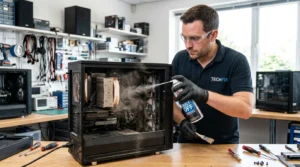
Dust Accumulation: Dust carpets heatsink fins and mesh intake filters, blocking the cold air required to pull heat away from heatpipes.
-
Degraded Thermal Paste: The conductive compound between your processor lid and cooler base dries out over 2 to 4 years, severely hindering thermal transfer.
-
Improper Case Airflow: Unbalanced fan setups (such as all fans configured as exhaust) leave hot air trapped inside the chassis.
Common Installation Traps
-
The “Peel Off Before Install” Sticker: A surprisingly common mistake when building a PC is leaving the clear protective plastic film on the bottom of a new air cooler or liquid cooler cold plate.
-
Uneven Mounting Pressure: Screws tightened unevenly can cause the cooler base to sit tilted, preventing full contact with the processor lid.
-
Excessive or Insufficient Paste: Applying too little compound leaves microscopic air pockets that trap heat.
6. How to Lower High CPU Temperatures
Lowering your operating temps can be achieved through quick software adjustments or simple hardware upgrades.
Step 1: Quick Software Optimizations
-
Adjust Fan Curves: Open your BIOS settings or software like Fan Control to set a aggressive fan profile that ramps up fan speeds earlier when temps climb past 65°C.
-
Audit Background Apps: Open Windows Task Manager and close heavy background programs, cloud syncing tools, or hidden browser tabs taxing the chip while idle.
-
Set Power Limits: Use AMD Ryzen Master to enable Eco Mode, or adjust Intel power limits in BIOS to reduce peak wattage with negligible impacts on gaming performance.
Step 2: Advanced Undervolting
Undervolting reduces the target operating voltage sent to the processor without reducing clock frequencies. Lowering input power directly reduces heat generation. Modern tools like AMD’s Curve Optimizer allow users to safely undervolt their system, dropping peak operating loads by 5°C to 10°C while maintaining full system stability.
Step 3: Hardware Maintenance & Upgrades
-
Reapply Thermal Paste: Clean the old, hardened compound off your chip and cooler base using 90%+ isopropyl alcohol and a lint-free microfiber cloth. Apply a small pea-sized dot of fresh thermal paste in the center before reinstalling the cooler evenly.
-
Inspect Liquid Coolers (AIOs): If your All-In-One liquid cooler tube feels hot on one side while the radiator stays cold, or if you hear grinding noises, your pump impeller may have failed or trapped air bubbles.
-
Upgrade Cooling Hardware: If you are using a stock cooler that came in the box, swapping to a dual-tower air cooler or a 240mm/360mm AIO liquid loop will instantly lower your cpu temp under load.
FAQs
Does high CPU temperature reduce performance?
Yes. When your processor reaches its thermal junction limit, it activates thermal throttling. It automatically scales down clock frequencies to lower its temperature, which directly causes frame drops, stuttering, and slower processing times.
Can a CPU burn out permanently from overheating?
It is extremely rare for modern processors to burn out from high heat. Modern Intel and AMD chips feature built-in safety mechanisms that automatically shut down the entire system before permanent hardware damage can occur.
Why does my CPU temp spike when sitting idle on the desktop?
Short thermal spikes during idle are completely normal. Background Windows tasks, software updates, or opening a new browser tab cause brief power bursts that heat up small areas of the chip before fans can speed up to compensate.
How often should I replace thermal paste and clean out dust?
Dust filters and radiator fins should be cleared out using compressed air every 3 to 6 months. High-quality thermal paste typically lasts between 2 and 4 years before requiring fresh application.
Is 85°C safe for continuous gaming sessions?
Yes. Sustained operating loads of 85°C are within safe operating parameters for modern multi-core processors during intensive gaming or heavy rendering workflows.










Leave a Reply